Bikin Widget Countdown Gajian + Sisa Budget di iPhone (Tutorial Lengkap)
Tutorial lengkap bikin widget iPhone yang nampilin countdown gajian dan sisa budget dengan dua bar yang bisa dibandingin. Pakai Scriptable, gratis, kodenya tinggal salin.
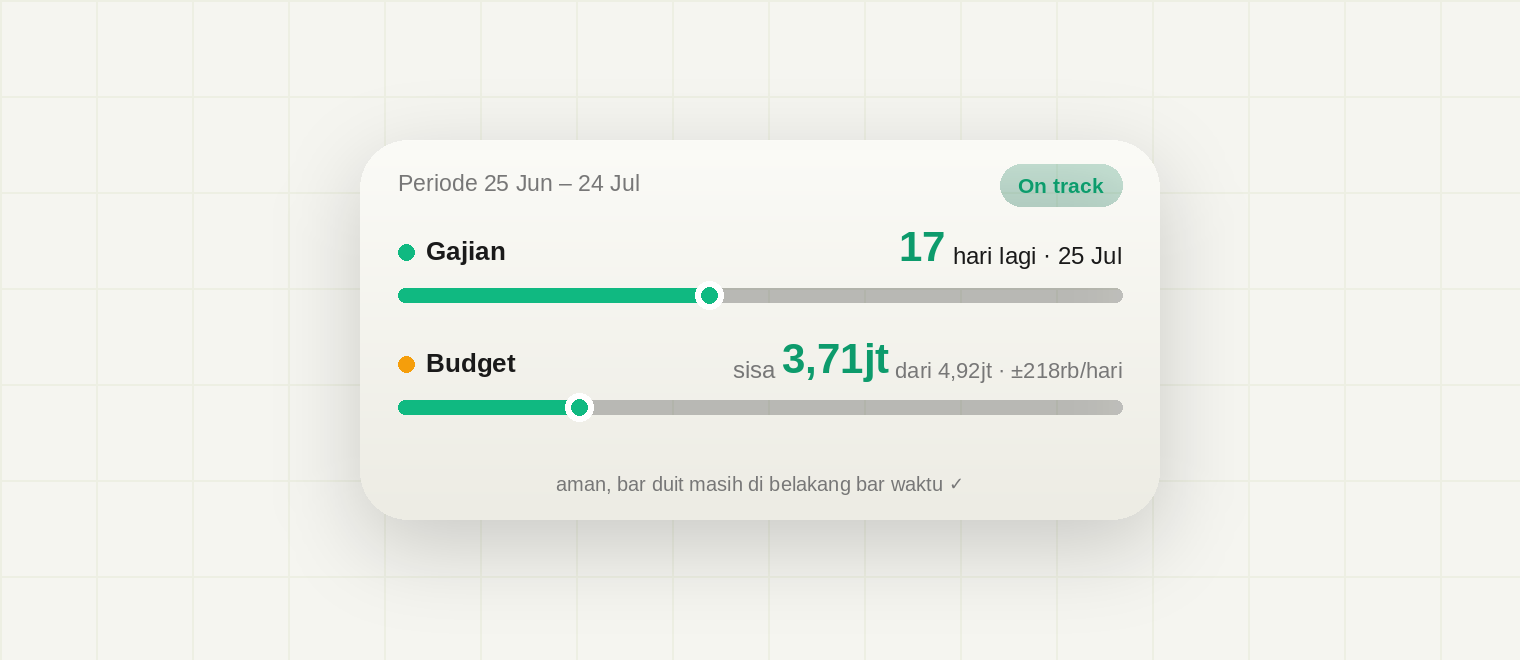
Ini dia widget yang paling sering ditanyain dari artikel sistem keuanganku: countdown gajian + sisa budget, dua-duanya dalam satu widget medium di home screen.
Kalau kamu belum pernah pakai Scriptable sama sekali, baca dulu Scriptable 101 biar nggak bingung. Lima belas menit, terus balik ke sini.
Konsepnya dulu, biar nggak cuma salin tempel
Periode gajian, bukan periode kalender
Aku gajian tanggal 25. Artinya "bulan keuanganku" itu 25 Juni sampai 24 Juli, bukan 1 sampai 30. Kalau budget kamu di-reset tiap tanggal 1 padahal gajian tanggal 25, minggu terakhir sebelum gajian bakal selalu kerasa aneh. Widget ini ngikutin periode gajian, dan otomatis reset tiap tanggal gajian.
Dua bar, satu aturan
Nah ini bagian favoritku. Widget-nya nampilin dua bar yang bentuknya sama persis, dua-duanya jalan dari 0 ke penuh:
Bar pertama itu waktu: keisi sejauh hari yang udah berjalan di periode ini. Bar kedua itu duit: keisi sejauh budget yang udah kepake.
Aturannya cuma satu: bar duit jangan sampai nyalip bar waktu. Kalau hari baru jalan 40% tapi duit udah kepake 60%, ya artinya kamu lagi boros. Nggak perlu rumus, nggak perlu mikir, cukup bandingin panjang dua bar.
(Buat yang suka matematika: ini sebenernya sama persis sama ngebandingin sisa budget vs "pace ideal". Cuma divisualin dengan cara yang nggak perlu dijelasin.)
Yang kamu butuhin
Aplikasi Scriptable (gratis), dan itu doang. Widget ini baca data pengeluaran dari file jajan.json kalau ada, tapi kalau kamu belum punya sistem pencatatnya (itu tutorial berikutnya), widget tetap jalan kok, bar duitnya aja yang diam di nol.
Langkah 1: Setting
Bikin script baru di Scriptable, dan mulai dari dua angka yang paling penting:
// === SETTING ===
const GAJIAN_TANGGAL = 25;        // tanggal gajianmu
const BUDGET_BULANAN = 4920000;   // budget jajan/keinginan per periode
// ===============
Ganti sesuai kondisimu. Sisanya nggak perlu diubah.
Langkah 2: Hitung periodenya
const now = new Date();
const startOfToday = new Date(now.getFullYear(), now.getMonth(), now.getDate());
const MS_PER_DAY = 86400000;

// Gajian berikutnya
let gajian = new Date(now.getFullYear(), now.getMonth(), GAJIAN_TANGGAL);
if (now.getDate() >= GAJIAN_TANGGAL) {
  gajian = new Date(now.getFullYear(), now.getMonth() + 1, GAJIAN_TANGGAL);
}
// Periode = gajian terakhir sampai gajian berikutnya
const periodeMulai = new Date(gajian.getFullYear(), gajian.getMonth() - 1, GAJIAN_TANGGAL);
const sisaHari = Math.round((gajian - startOfToday) / MS_PER_DAY);
const totalHari = Math.round((gajian - periodeMulai) / MS_PER_DAY);
const hariBerjalan = totalHari - sisaHari;
const pctWaktu = hariBerjalan / totalHari;
Logikanya: kalau hari ini masih sebelum tanggal 25, gajian berikutnya ya tanggal 25 bulan ini. Kalau udah lewat (atau pas), gajian berikutnya bulan depan. Dari situ semua angka lain tinggal ngikut.
Langkah 3: Baca pengeluaran (opsional tapi seru)
const fm = FileManager.iCloud();
const path = fm.joinPath(fm.documentsDirectory(), "jajan.json");
let terpakai = 0;
if (fm.fileExists(path)) {
  await fm.downloadFileFromiCloud(path);
  try {
    terpakai = JSON.parse(fm.readString(path))
      .filter(d => { const t = new Date(d.t); return t >= periodeMulai && t < gajian; })
      .reduce((s, d) => s + d.n, 0);
  } catch (e) {}
}
Ini baca file jajan.json dari iCloud, ambil transaksi periode berjalan aja, terus jumlahin. Kalau file-nya nggak ada, terpakai tetap 0 dan widget-nya tetap hidup. Cara ngisi file ini (catat pengeluaran dalam 3 detik pakai Back Tap) ada di tutorial berikutnya.
Langkah 4: Gambar bar-nya
Scriptable nggak punya komponen progress bar, jadi kita gambar sendiri pakai DrawContext. Satu fungsi buat dua bar, biar bentuknya dijamin identik:
function bar(pct, warna, wPx, hPx) {
  pct = Math.max(0, Math.min(1, pct));
  const knob = hPx * 2;
  const ctx = new DrawContext();
  ctx.size = new Size(wPx, knob);
  ctx.opaque = false;
  ctx.respectScreenScale = true;
  const y = (knob - hPx) / 2;
  // track (jalur abu-abu)
  const t = new Path();
  t.addRoundedRect(new Rect(0, y, wPx, hPx), hPx / 2, hPx / 2);
  ctx.addPath(t);
  ctx.setFillColor(trackBg);
  ctx.fillPath();
  // isi
  const fillW = Math.max(hPx, (wPx - knob / 2) * pct);
  const f = new Path();
  f.addRoundedRect(new Rect(0, y, fillW, hPx), hPx / 2, hPx / 2);
  ctx.addPath(f);
  ctx.setFillColor(warna);
  ctx.fillPath();
  // knob bulat di ujung isi
  ctx.setFillColor(warna);
  ctx.fillEllipse(new Rect(fillW - knob / 2, 0, knob, knob));
  ctx.setFillColor(Color.dynamic(Color.white(), new Color("#1e293b")));
  const inner = knob * 0.45;
  ctx.fillEllipse(new Rect(fillW - knob / 2 + (knob - inner) / 2, (knob - inner) / 2, inner, inner));
  return ctx.getImage();
}
Hasilnya bar rounded dengan bulatan kecil di ujung, kayak slider. Bulatan itu penting: dia yang bikin mata gampang ngebandingin posisi dua bar.
Kode lengkap
Ini semuanya udah dirakit, tinggal salin satu file utuh ke Scriptable:
// ==================================================
// Widget Countdown Gajian + Sisa Budget (Scriptable)
// Dua bar identik "0 ke penuh":
//   bar 1 = waktu (hari berjalan menuju gajian)
//   bar 2 = duit (budget yang udah kepake)
// Aturannya: bar duit jangan nyalip bar waktu.
// Widget size: Medium
// ==================================================

// === SETTING ===
const GAJIAN_TANGGAL = 25;
const BUDGET_BULANAN = 4920000;
// ===============

const now = new Date();
const startOfToday = new Date(now.getFullYear(), now.getMonth(), now.getDate());
const MS_PER_DAY = 86400000;

let gajian = new Date(now.getFullYear(), now.getMonth(), GAJIAN_TANGGAL);
if (now.getDate() >= GAJIAN_TANGGAL) {
  gajian = new Date(now.getFullYear(), now.getMonth() + 1, GAJIAN_TANGGAL);
}
const periodeMulai = new Date(gajian.getFullYear(), gajian.getMonth() - 1, GAJIAN_TANGGAL);
const sisaHari = Math.round((gajian - startOfToday) / MS_PER_DAY);
const totalHari = Math.round((gajian - periodeMulai) / MS_PER_DAY);
const hariBerjalan = totalHari - sisaHari;
const pctWaktu = hariBerjalan / totalHari;

const fm = FileManager.iCloud();
const path = fm.joinPath(fm.documentsDirectory(), "jajan.json");
let terpakai = 0;
if (fm.fileExists(path)) {
  await fm.downloadFileFromiCloud(path);
  try {
    terpakai = JSON.parse(fm.readString(path))
      .filter(d => { const t = new Date(d.t); return t >= periodeMulai && t < gajian; })
      .reduce((s, d) => s + d.n, 0);
  } catch (e) {}
}

const sisa = BUDGET_BULANAN - terpakai;
const pctPakai = Math.max(0, Math.min(1, terpakai / BUDGET_BULANAN));
const sisaPerHari = sisaHari > 0 ? Math.round(Math.max(0, sisa) / sisaHari) : 0;
const onTrack = pctPakai <= pctWaktu;

function rpS(n) {
  const neg = n < 0 ? "-" : "";
  n = Math.abs(n);
  if (n >= 1000000) return neg + (n / 1000000).toFixed(2).replace(/\.?0+$/, "") + "jt";
  if (n >= 1000) return neg + Math.round(n / 1000) + "rb";
  return neg + String(Math.round(n));
}
const BLN = ["Jan","Feb","Mar","Apr","Mei","Jun","Jul","Agu","Sep","Okt","Nov","Des"];
function tglPendek(d) { return d.getDate() + " " + BLN[d.getMonth()]; }

const bgTop = Color.dynamic(new Color("#f5f5f0"), new Color("#0f172a"));
const bgBottom = Color.dynamic(new Color("#eceae2"), new Color("#1e293b"));
const textMain = Color.dynamic(new Color("#1a1a1a"), new Color("#f1f5f9"));
const textSub = Color.dynamic(new Color("#777777"), new Color("#94a3b8"));
const trackBg = Color.dynamic(new Color("#1a1a1a", 0.10), new Color("#ffffff", 0.14));
const hijau = new Color("#10b981");
const amber = new Color("#f59e0b");
const merah = new Color("#ef4444");
const statusColor = sisa < 0 ? merah : (onTrack ? hijau : amber);
const statusText = sisa < 0 ? "Over!" : (onTrack ? "On track" : "Boros");

function bar(pct, warna, wPx, hPx) {
  pct = Math.max(0, Math.min(1, pct));
  const knob = hPx * 2;
  const ctx = new DrawContext();
  ctx.size = new Size(wPx, knob);
  ctx.opaque = false;
  ctx.respectScreenScale = true;
  const y = (knob - hPx) / 2;
  const t = new Path();
  t.addRoundedRect(new Rect(0, y, wPx, hPx), hPx / 2, hPx / 2);
  ctx.addPath(t);
  ctx.setFillColor(trackBg);
  ctx.fillPath();
  const fillW = Math.max(hPx, (wPx - knob / 2) * pct);
  const f = new Path();
  f.addRoundedRect(new Rect(0, y, fillW, hPx), hPx / 2, hPx / 2);
  ctx.addPath(f);
  ctx.setFillColor(warna);
  ctx.fillPath();
  ctx.setFillColor(warna);
  ctx.fillEllipse(new Rect(fillW - knob / 2, 0, knob, knob));
  ctx.setFillColor(Color.dynamic(Color.white(), new Color("#1e293b")));
  const inner = knob * 0.45;
  ctx.fillEllipse(new Rect(fillW - knob / 2 + (knob - inner) / 2, (knob - inner) / 2, inner, inner));
  return ctx.getImage();
}

const BAR_W = 272;
const BAR_H = 6;

const w = new ListWidget();
const grad = new LinearGradient();
grad.colors = [bgTop, bgBottom];
grad.locations = [0, 1];
w.backgroundGradient = grad;
w.setPadding(12, 16, 12, 16);

const head = w.addStack();
head.centerAlignContent();
const per = head.addText("Periode " + tglPendek(periodeMulai) + " – " + tglPendek(new Date(gajian - MS_PER_DAY)));
per.font = Font.mediumSystemFont(10);
per.textColor = textSub;
head.addSpacer();
const pill = head.addStack();
pill.backgroundColor = new Color(statusColor.hex, 0.16);
pill.cornerRadius = 8;
pill.setPadding(3, 8, 3, 8);
const pillText = pill.addText(statusText);
pillText.font = Font.boldSystemFont(10);
pillText.textColor = statusColor;

w.addSpacer(10);

const r1 = w.addStack();
r1.bottomAlignContent();
const t1 = r1.addText("💰 Gajian");
t1.font = Font.boldSystemFont(11);
t1.textColor = textMain;
r1.addSpacer();
const v1 = r1.addStack();
v1.bottomAlignContent();
const v1big = v1.addText(String(sisaHari));
v1big.font = Font.heavyRoundedSystemFont(20);
v1big.textColor = hijau;
v1.addSpacer(3);
const v1sub = v1.addText("hari lagi · " + tglPendek(gajian));
v1sub.font = Font.mediumRoundedSystemFont(11);
v1sub.textColor = textMain;

w.addSpacer(3);
const bar1 = w.addImage(bar(pctWaktu, hijau, BAR_W, BAR_H));
bar1.imageSize = new Size(BAR_W, BAR_H * 2);

w.addSpacer(9);

const r2 = w.addStack();
r2.bottomAlignContent();
const t2 = r2.addText("🍜 Budget");
t2.font = Font.boldSystemFont(11);
t2.textColor = textMain;
r2.addSpacer();
const v2 = r2.addStack();
v2.bottomAlignContent();
const v2pre = v2.addText("sisa ");
v2pre.font = Font.mediumRoundedSystemFont(11);
v2pre.textColor = textSub;
const v2big = v2.addText(rpS(sisa));
v2big.font = Font.heavyRoundedSystemFont(20);
v2big.textColor = statusColor;
v2.addSpacer(3);
const v2sub = v2.addText("dari " + rpS(BUDGET_BULANAN) + " · ±" + rpS(sisaPerHari) + "/hari");
v2sub.font = Font.mediumRoundedSystemFont(11);
v2sub.textColor = textMain;

w.addSpacer(3);
const bar2 = w.addImage(bar(pctPakai, statusColor, BAR_W, BAR_H));
bar2.imageSize = new Size(BAR_W, BAR_H * 2);

w.addSpacer(8);

const foot = w.addText(
  sisa < 0
    ? "budget habis, " + sisaHari + " hari lagi menuju gajian 🙏"
    : onTrack
      ? "aman, bar duit masih di belakang bar waktu ✓"
      : "pelan-pelan, bar duit nyalip bar waktu"
);
foot.font = Font.regularSystemFont(9);
foot.textColor = textSub;
foot.centerAlignText();

w.refreshAfterDate = new Date(Date.now() + 15 * 60 * 1000);

if (config.runsInWidget) {
  Script.setWidget(w);
} else {
  await w.presentMedium();
}
Script.complete();
Pasang di home screen
- Long press home screen, tap +, pilih Scriptable, ukuran Medium
- Long press widget-nya, Edit Widget, pilih script ini
- Bonus: di bagian When Interacting, pilih Open URL dan isi
scriptable:///run/nama-script-catatkalau kamu udah punya script pencatat, jadi tap widget langsung buka form catat
[Screenshot: proses pasang widget]
Kalau ada masalah
Widget nggak update setelah catat pengeluaran. Normal. Jadwal refresh widget itu iOS yang ngatur, bukan kita. Biasanya nyusul dalam beberapa menit. Kode kita minta refresh tiap 15 menit lewat refreshAfterDate, tapi itu permintaan, bukan perintah.
Muncul "Alerts are not supported in a widget". Widget kamu lagi nunjuk ke script yang salah (script pencatat, bukan script widget ini). Edit Widget, ganti script-nya.
Angka gede muncul "NaN". Cek BUDGET_BULANAN, pastikan angka murni tanpa titik: tulis 4920000, bukan 4.920.000.
Selanjutnya
Widget-nya udah hidup, sekarang bar duitnya perlu makanan: sistem catat pengeluaran 3 detik pakai Back Tap + kategori. Itu tutorial berikutnya (coming soon).
Kalau kamu bikin widget ini, aku beneran pengen lihat hasilnya. Mention atau kirim screenshot ya 😄